
Troubleshooting
Find the next step when a website preview, answer, or widget does not work as expected.
Screenshots use fictional Example.com workspaces and sample content. Your content and plan may differ.The website preview did not finish
Check that the URL opens publicly without a login. A website may block automated access or have pages that cannot be captured. Read the demo's error message and use Retry preview, or try another public URL.
An unavailable landing-page image does not always mean chat failed. If the selected pages were analyzed and the assistant is ready, you can still ask questions.
The chat bubble does not appear
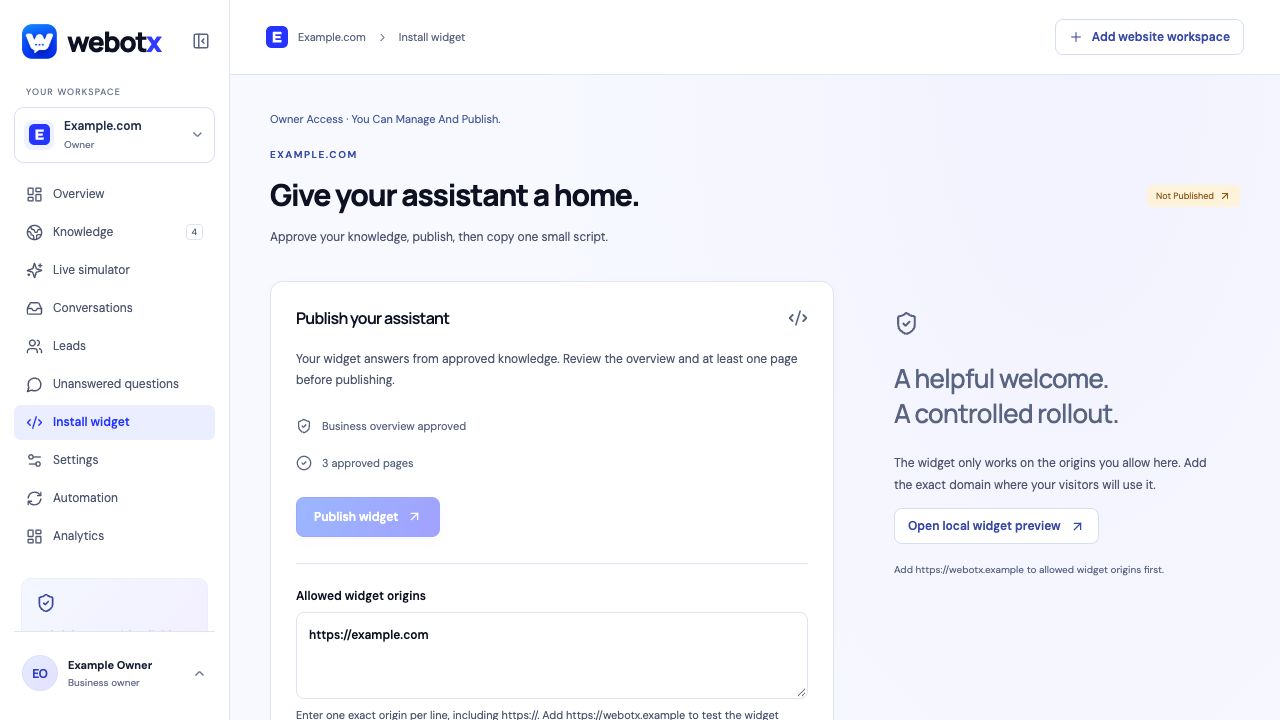
- Confirm the assistant is published and has an approved overview and at least one approved page.
- Check the copied script has the correct workspace widget key and was saved to a site-wide location.
- Compare the current browser origin with Allowed widget origins, including protocol, www, and port.
- Test a published page and clear the website cache. Check that the script and API requests load in the browser's network panel.
- Check browser errors for blocked scripts or connections. If your site uses a Content Security Policy, allow the actual WebotX script, API, and image hosts used by your installation.
- For a live website, use publicly reachable HTTPS addresses instead of localhost.
 View full size
The assistant cannot answer a question
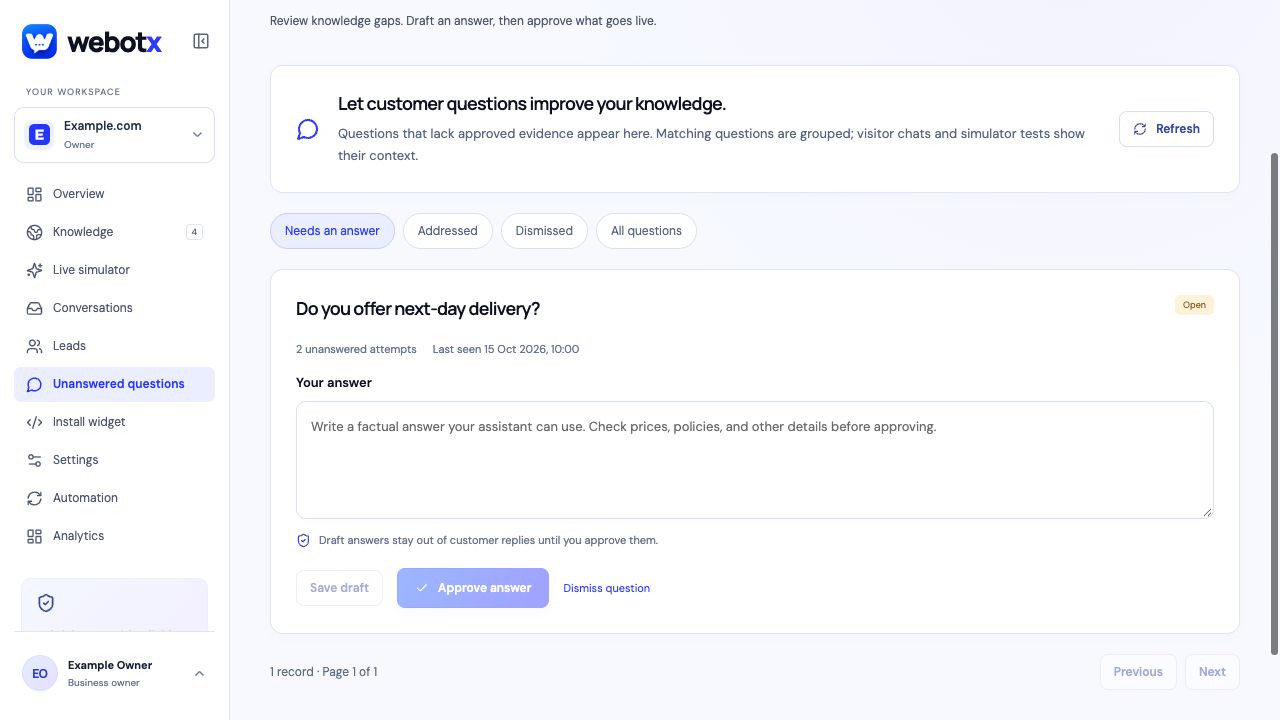
Check whether the relevant source finished processing, is included, and is approved. A saved draft is not available to visitors. Read the currently approved version and make sure it contains the fact being asked about.
Review Unanswered questions, prepare a factual answer, and approve it if appropriate. Repeat the question in Live simulator. Check the workspace's usage allowance if AI requests are being limited.
 View full size
My changes are not visible
Save chatbox customization, then reload the visitor page. For knowledge changes, approve the revised draft so it replaces the previous approved snapshot.
If your website installation changed, publish the site and clear its page cache. Confirm you are viewing the same workspace and website that you edited.
I cannot approve, publish, or edit
Check your role and selected workspace in Workspaces & team. Owners and Admins can approve and publish; Members can edit drafts and handle conversations; Viewers have read-only access. Ask your workspace Owner or Admin to review your assignment.