
Install your widget
Publish your assistant, configure allowed origins, and add the website script.
Screenshots use fictional Example.com workspaces and sample content. Your content and plan may differ.Publish the assistant first
In Install widget, approve the business overview and at least one page, then select Publish widget. Owners and Admins can publish. An unpublished assistant cannot serve the public widget.
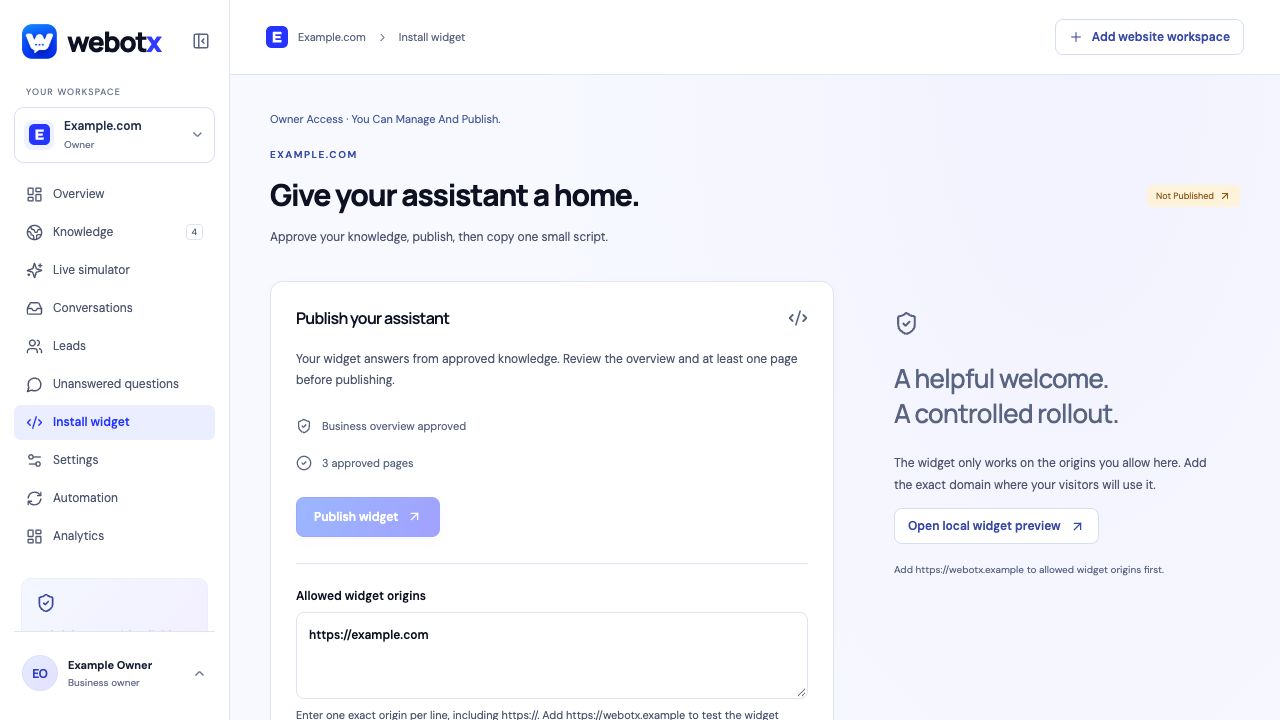 View full size
Allow each exact website origin
An origin is the protocol, hostname, and port, without a page path. Enter one origin per line in Allowed widget origins and save. For example, https://example.com and https://www.example.com are different origins and must be added separately if both serve your site.
Use the visitor-facing origin after redirects. HTTP and HTTPS differ, and a non-default port is part of the origin. You can save up to ten origins. For a local widget preview, also allow the WebotX website origin shown in the dashboard.
Copy your generated script
Choose your platform in Install widget and copy the complete script. Add it once per page in your site-wide footer or shared layout, after the page body is available.
The example below shows the format. YOUR_WIDGET_KEY is a placeholder; use the real script from your own workspace. A localhost script is for local testing. A live website needs a publicly reachable HTTPS WebotX address.
<script
  src="https://webotx.com/widget.js"
  data-webotx="YOUR_WIDGET_KEY"
  async>
</script>
Use a site-wide script location
WebotX uses the same script across website platforms that permit custom JavaScript. The dashboard has installation instructions for custom websites, Shopify, WordPress, Squarespace, Wix, and Webflow.
Choose a site-wide placement so visitors can use the assistant across pages. Your website builder's plan and custom-code settings determine whether it permits the script. Check the platform guide linked in the dashboard for its current requirements.
Check the published website
- Save and publish your website changes. Clear its page cache if needed.
- Open a public page and check that the chat launcher appears.
- Ask a question supported by your approved knowledge and check the sources.
- Choose Ask for a person and check the conversation in your dashboard.
- If the widget fails, check publishing, exact allowed origins, and browser errors using the troubleshooting guide.