
Plan a storefront installation
This guide covers a manual theme installation on public storefront pages. Use it to help shoppers find approved product details, delivery policies, returns information, and contact options. Identify which information is public and which questions your store team must handle.
You need permission to edit the store's theme. Keep a theme backup before changing code and ask the person responsible for your storefront to review the change if needed. Treat each theme as a separate installation location when you preview or switch designs.
Prepare approved store knowledge before editing the theme
Capture the storefront in a WebotX workspace and inspect which product and policy pages finished processing. Review their summaries alongside the business overview. Approve the overview and at least one useful page after correcting any outdated terms. In Live simulator, test a product question and a policy exception before showing the assistant to shoppers.
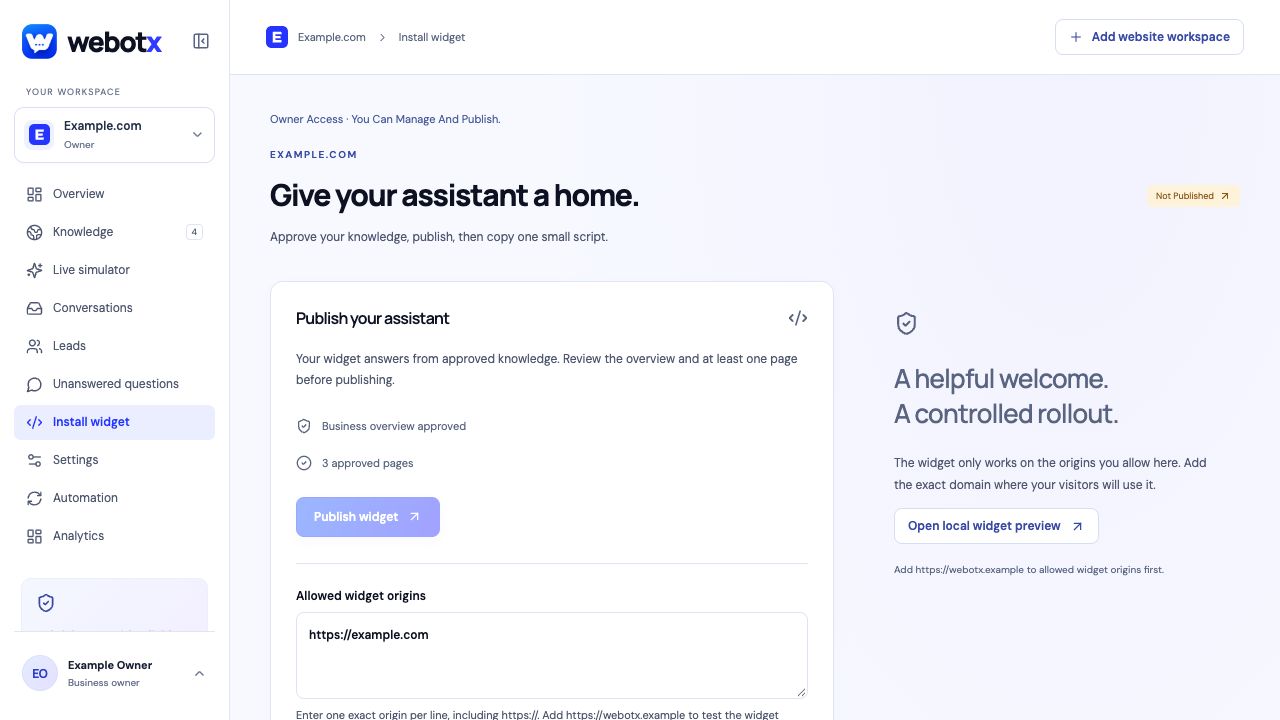
Publish the assistant in Install widget and allow the storefront's exact origin. Use the domain shown after storefront redirects, including https and www where applicable. Copy this store's generated script so another client's or test store's widget key is not added to the theme.
 View full size
Add the snippet to the Shopify theme
Use the shared layout for the theme you intend to publish. Shopify's official theme-code guide explains how to open and edit theme files.
- In Shopify admin, open Online Store → Themes and duplicate the theme before editing.
- Open Edit code for the target theme, then open layout/theme.liquid.
- Paste the complete WebotX script immediately before the closing </body> tag and save.
- Open the published storefront and check the launcher. Repeat installation checks when publishing a different theme.
The Shopify widget script
Keep the complete script copied from the store's WebotX workspace, including its widget key. The example below contains a placeholder and is only a format reference. The theme layout should load one instance, even if you previously experimented with a different installation location.
Theme code determines where the widget loads. Store knowledge, suggested questions, and conversation handling are maintained in WebotX. Publishing a theme does not approve new product or delivery information on its own.
<script
  src="https://webotx.com/widget.js"
  data-webotx="YOUR_WIDGET_KEY"
  async>
</script>
Check product and policy answers
Ask about a product fact and a delivery or returns policy that you have approved in WebotX. Open each source link to check the answer against the published store. Then ask about an individual order: a manual storefront installation should not be presented as a connection to a shopper's order history.
Check a product page, a collection page, and the mobile storefront. Make sure the launcher does not cover an important purchase control. Tell your team how to handle order-specific questions through human handoff.
- Test a public page on the store's final domain after redirects.
- Check that a theme preview and the published theme are not being confused.
- Review approved policies again after changing delivery or returns terms.
Troubleshoot Shopify setup
For a storefront problem, identify the active theme and public domain first. For a shopping question, check the relevant approved product or policy. Keep a request for private order information separate from either installation issue.
| What you see | What to check |
|---|---|
| Widget missing after a theme change | Check whether the new theme's shared layout contains the installation. |
| Works on the preview domain only | Confirm installation in the published theme and allow the public storefront origin. |
| Shopper asks for order status | Use human handoff; a theme script does not provide private order access. |
Shopify: common questions
Is a WebotX Shopify app required?
No Shopify app is required for the manual theme method described here. You add a widget script to the storefront layout and manage the assistant in WebotX.
Can WebotX look up a customer's Shopify order?
This manual installation does not connect to Shopify orders, private customer records, inventory, or checkout data. Use approved public information for general answers and hand account-specific questions to your team.
Will the chatbot stay installed when I change Shopify themes?
Check the new theme before publishing it. A script added to one theme's layout needs to be present in the replacement theme as well.
Official platform documentation
Check the platform's current controls and plan requirements alongside this guide.
Shopify: editing theme code