
Check Code Injection access
Confirm that your Squarespace plan includes Code Injection before preparing the installation. This method loads the widget through the site's shared footer. A page-specific code block is a different placement and will not provide the same site-wide setup.
Choose the public material the assistant should answer from: services, product descriptions, delivery information, or your enquiry process. Keep private member details and individual purchase questions with your team unless you have a separate, verified workflow for them.
Review the sources behind your Squarespace chatbot
Build a WebotX workspace from your public Squarespace website. Check service descriptions, policies, and the drafted business overview against your current offering. Approve the overview and one or more useful pages only after correcting the facts. Run sample visitor questions in Live simulator and follow the supporting links.
Publish the assistant through Install widget and save the public site's exact origin in Allowed widget origins. Include the correct protocol and hostname after redirects. Then copy the workspace script for the Footer Code Injection field; completing Squarespace's code entry does not replace these WebotX publishing checks.
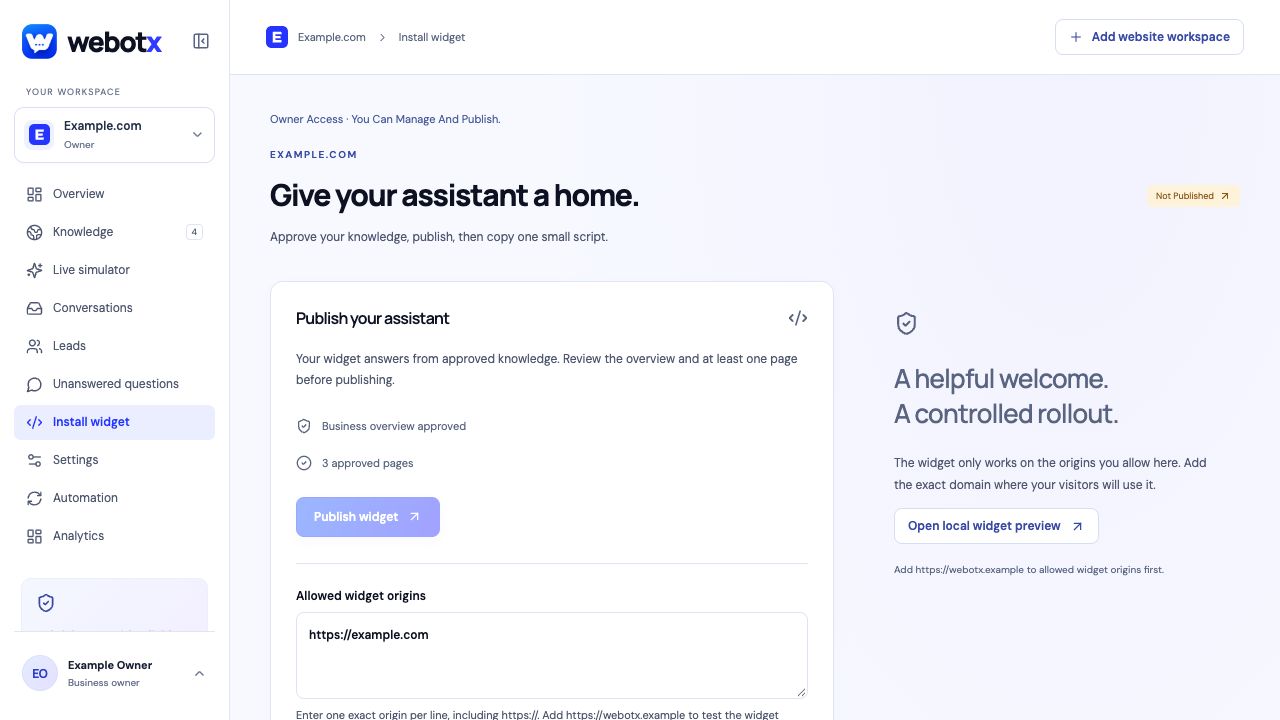 View full size
Add WebotX with Footer Code Injection
Squarespace's official Code Injection guide lists the supported plans and the purpose of each placement field.
- Open your website's Code Injection panel.
- Paste your complete WebotX installation script into the Footer field, keeping the opening and closing script tags.
- Save the change and open the public website outside the editor.
- Check the launcher on the homepage and another public page. Do not use a checkout page as the installation test.
The Squarespace widget script
Use the full script from your Squarespace website's WebotX workspace. In the example, YOUR_WIDGET_KEY is deliberately a placeholder. Keep the script tags when pasting into Footer Code Injection and remove any older page-level installation that would load a duplicate.
Manage the assistant's tone, launcher design, and approved content in WebotX. The Squarespace field is its loading location, so changing that field is unnecessary when you are only revising an approved answer.
<script
  src="https://webotx.com/widget.js"
  data-webotx="YOUR_WIDGET_KEY"
  async>
</script>
Check public pages and mobile placement
Ask a question about a service or policy that has been approved in WebotX. Follow its source link and confirm that it describes your current business. Then test human handoff so the team knows where the conversation appears.
Check mobile navigation, enquiry buttons, and any fixed banners alongside the launcher. If you move to a new domain or redesign the site, repeat installation and source checks before relying on the assistant with visitors.
- Confirm the script is in the shared Footer field.
- Check a logged-out public visit on desktop and mobile.
- Review the source knowledge after changing important website copy.
Troubleshoot Squarespace setup
Confirm the Squarespace field and page type before changing the assistant. Shared footer code, a page-specific block, and checkout are different contexts. When the launcher is visible, move the investigation to source approval and test questions.
| What you see | What to check |
|---|---|
| Code Injection is unavailable | Check your Squarespace plan against its current official documentation. |
| Widget appears on one page only | Check whether you used a page-specific block instead of shared Footer Code Injection. |
| No widget at checkout | Squarespace checkout pages do not support custom code; verify a public site page. |
Squarespace: common questions
Which Squarespace field should contain the widget?
Use the Footer field in the website's Code Injection panel for the site-wide method in this guide. Paste the full script copied from WebotX.
Will the chatbot appear on Squarespace checkout pages?
Squarespace checkout pages do not support custom code. Test the WebotX widget on your public website pages instead.
Does WebotX automatically update its approved answers when I edit Squarespace?
Review and approve refreshed knowledge in WebotX. Website changes do not silently replace the approved source version used for visitor answers.
Official platform documentation
Check the platform's current controls and plan requirements alongside this guide.
Squarespace: customize your site with code injection