
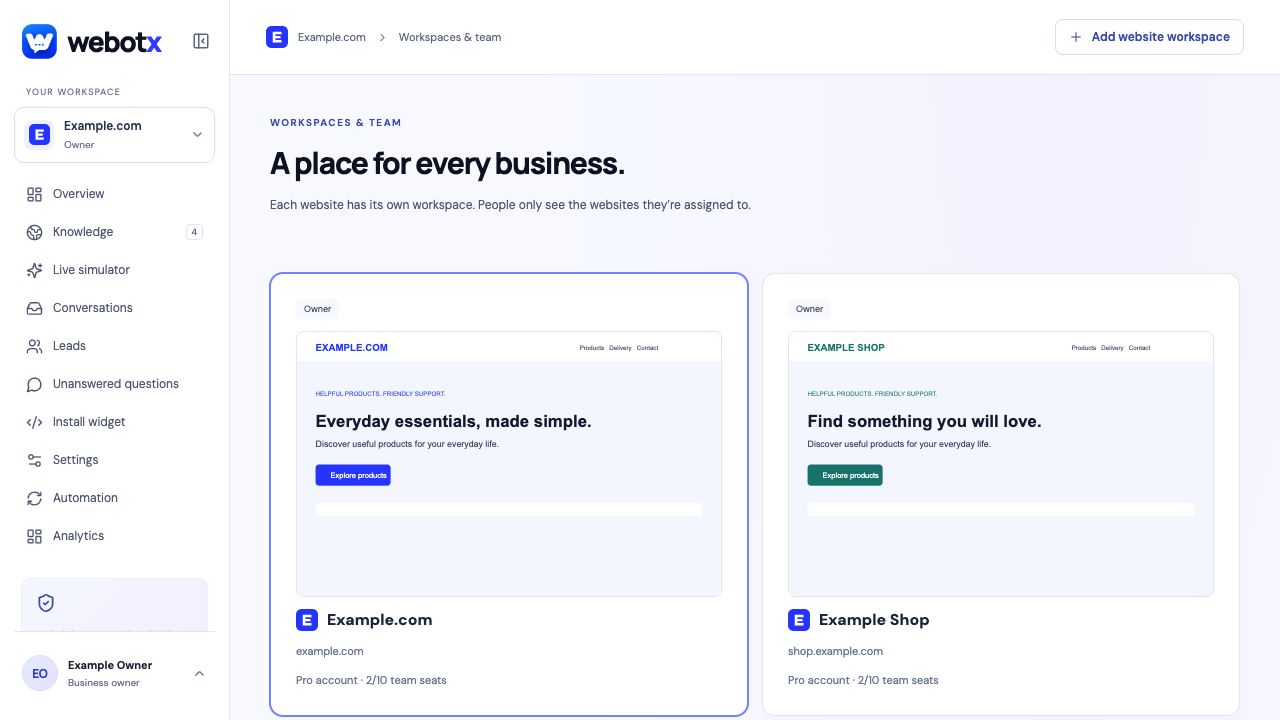
Give each website its own workspace
An agency may need different answers, greetings, and follow-up processes for each client. Start by identifying who owns each website's knowledge and who handles its conversations. Create a separate workspace for each website instead of combining unrelated client material into one assistant.
Check the selected workspace before reviewing a source, changing a greeting, or copying an installation script. Keep the website domain and its workspace key together in your delivery notes so the assistant installed on a site belongs to that site.
 View full size
Build a repeatable client review
Ask the client which public sources are current and which questions should reach a person. Review the captured business overview and page summaries with those instructions in mind. Correct old pricing, discontinued services, and uncertain promises before approving anything for visitors.
Use a short acceptance test for each website: one routine question, one policy exception, one unsupported question, and one human handoff. Record which source supports each expected answer. The same review structure can be reused while the actual facts stay specific to the client.
- Confirm the website, knowledge owner, and conversation owner.
- Review and approve the business overview plus useful included pages.
- Test questions and source links in Live simulator.
- Install the matching workspace script and check the public domain.
- Show the responsible team where handoffs and leads appear.
Assign people to the work they need
Use Workspaces & team to invite and assign people. Owners and Admins can approve knowledge and publish. Members can edit drafts and work with conversations and leads. Viewers have read-only access. Assign people only to the workspaces they need.
Check seat usage before sending invitations. Pending invitations reserve a seat, and assigning the same person to several workspaces uses one seat across the owner's account. A clear assignment process helps you avoid granting broad access simply to make a launch easier.
Use a delivery checklist for every client
The following checks are an example agency handover process. Adapt them to the people responsible for each website.
| Review area | What to confirm | Who should know |
|---|---|---|
| Knowledge | Approved facts and source links match the client's current website. | The person responsible for client content. |
| Installation | The workspace key and allowed origin match the published domain. | The person responsible for the website. |
| Conversations | A test handoff reaches the expected workspace and assigned team. | The person handling visitor enquiries. |
| Maintenance | Policy changes have an owner and a review process. | The agency and client contacts maintaining the assistant. |
Plan for shared usage across websites
Monthly AI tokens and team seats are shared across the account's workspaces. Page and document limits apply separately to each workspace. A busy website can use part of the same monthly token allowance as the other sites under that owner, so review usage as you add clients.
The pricing page lists planned tiers and remains a preview; live payments are not enabled. Check the current Membership screen for the account's actual access. Do not promise a client a fixed number of conversations from a token allowance, because website analysis, input, context, and replies all contribute to usage.
- Keep one website's source review separate from another's.
- Repeat installation checks after domain or theme changes.
- Confirm the follow-up owner before completing each launch.
Agencies and multiple websites: common questions
Can I manage chatbots for multiple client websites?
Use a separate workspace for each website within the owner's account allowance. Each workspace groups its own knowledge, widget, conversations, leads, and assigned people.
Is the monthly AI allowance separate for every workspace?
No. Monthly AI tokens are shared across the account's workspaces. Website-page and document allowances are counted separately per workspace, while team seats are also shared across the account.
Can clients or teammates have different access levels?
Assign the available Owner, Admin, Member, or Viewer role according to the workspace's access controls. Owners and Admins can approve and publish; Members can edit drafts and handle conversations; Viewers can read without editing.